📖 EPUB Reader
BookLore includes a full-featured EPUB reader with customizable themes, annotations, bookmarks, notes, search, and reading progress tracking. Open any EPUB file from your library to start reading.
📚 Reading Interface
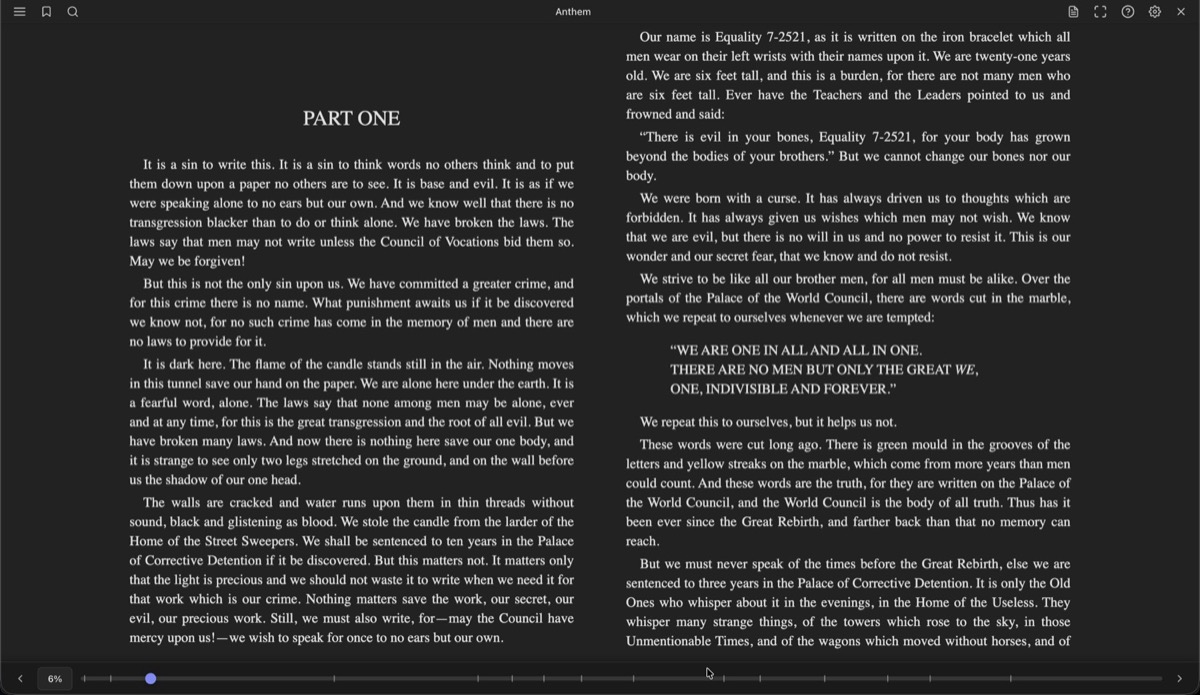
The reader displays your book content with a toolbar at the top and a progress bar at the bottom. Both bars auto-hide in fullscreen mode and reappear when you move your mouse to the top or bottom edge, or tap the center of the screen.
🔧 Toolbar Actions
| Button | Action |
|---|---|
| Chapters | Opens the table of contents sidebar |
| Bookmark | Toggles a bookmark at the current position |
| Search | Opens the search panel |
| Notes | Opens the notes panel (desktop only) |
| Fullscreen | Enters fullscreen mode (desktop only) |
| ? | Shows keyboard shortcuts (desktop only) |
| Settings | Opens the settings dialog |
| X | Closes the reader |
On mobile, Notes, Fullscreen, and Keyboard Shortcuts are moved into an overflow menu.
🧭 Navigation
⌨️ Keyboard Shortcuts
| Action | Keys |
|---|---|
| Next page | → Space Page Down |
| Previous page | ← Shift+Space Page Up |
| First section | Home |
| Last section | End |
| Toggle table of contents | T |
| Toggle search | S |
| Toggle notes | N |
| Toggle fullscreen | F |
| Close dialog / exit fullscreen | Escape |
| Show help | ? |
🖱️ Click Zones
- Left 30% of the page goes to the previous page
- Right 70% goes to the next page
- Tap the center to toggle the toolbar visibility
👆 Touch
- Swipe left for the next page
- Swipe right for the previous page
- Long press to select text
📍 Location Popover
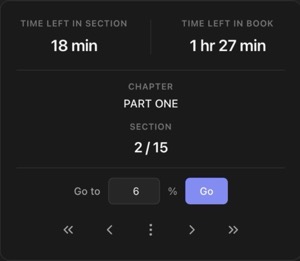
Click the percentage indicator in the footer to open the location popover. It shows:
- Time left in the current section and in the entire book
- Current chapter and section position (e.g., 2/15)
- Go to a specific percentage
- Navigation buttons to jump to the first, previous, next, or last section
📑 Table of Contents
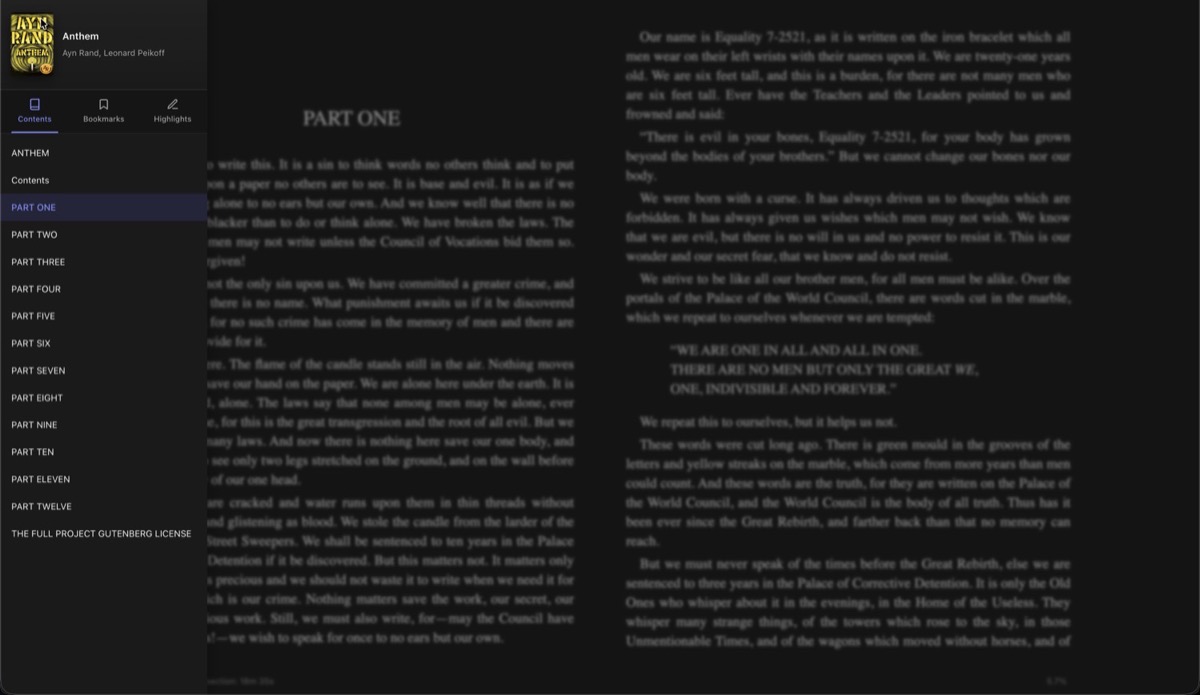
Press T or click the chapters button to open the sidebar. The TOC displays a hierarchical view of the book's structure. Chapters with sub-sections can be expanded or collapsed. The current chapter is highlighted automatically. Clicking a chapter navigates to that position.
✏️ Highlights & Annotations
Select any text to reveal the selection popup. From there you can:
- Highlight the text with a chosen style and color
- Add a note (opens a note dialog)
- Copy the text
🎨 Highlight Styles
Four annotation styles are available:
| Style | Description |
|---|---|
| Highlight | Colored background behind text |
| Underline | Solid line under text |
| Squiggly | Wavy underline |
| Strikethrough | Line through text |
Each style supports five colors: Yellow, Green, Blue, Pink, and Orange.
To delete a highlight, select the highlighted text and click the delete button in the popup, or use the trash icon in the sidebar highlights list.
📝 Notes
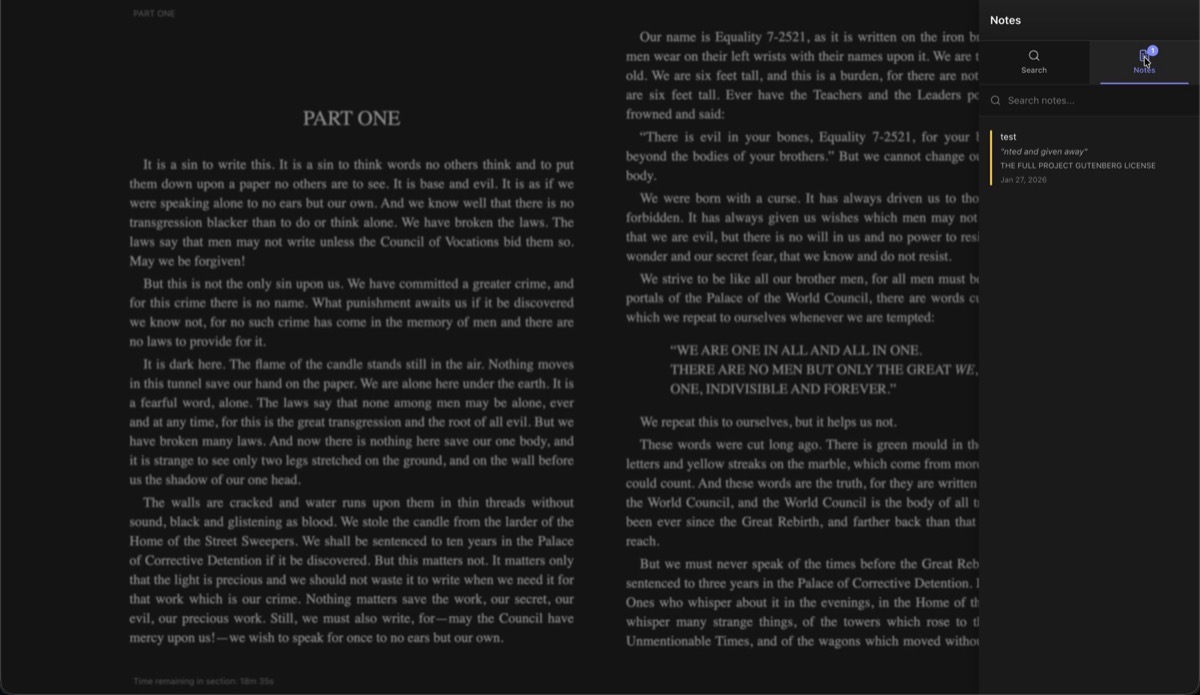
Select text and click the note button to create a note. Each note stores:
- The selected text passage
- Your note content
- A color label (Amber, Green, Blue, Pink, Purple, or Deep Orange)
View and manage all notes by pressing N or clicking the notes icon. The notes panel includes a search box to filter notes by content. Click a note to jump to its position in the book, or use the edit and delete buttons.
🔖 Bookmarks
Click the bookmark icon in the toolbar to bookmark your current position. A filled bookmark icon indicates the current location is bookmarked. View all bookmarks in the sidebar under the Bookmarks tab. Click any bookmark to jump to that location.
🔍 Search
Press S or click the search icon to open the search panel. Type at least 3 characters to start searching. Results appear with surrounding context and the matching section name. Click a result to navigate directly to that position. A progress indicator shows how far through the book the search has progressed.
⚙️ Settings
🎛️ Quick Settings
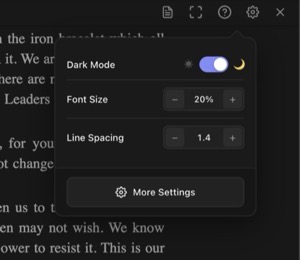
The settings icon opens a quick panel with the most common options: dark mode toggle, font size, and line spacing. Click More Settings to access the full settings dialog.
🎨 Theme
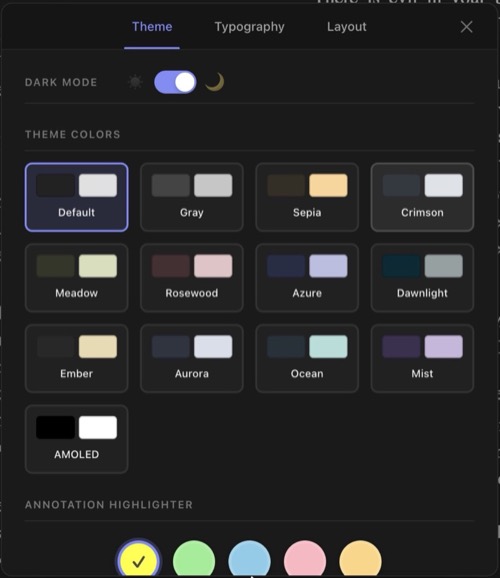
Toggle between light and dark mode, then pick from 13 theme color presets:
| Theme | Theme | Theme |
|---|---|---|
| Default | Gray | Sepia |
| Crimson | Meadow | Rosewood |
| Azure | Dawnlight | Ember |
| Aurora | Ocean | Mist |
| AMOLED |
Below the themes, choose a default annotation highlighter color (Yellow, Green, Blue, Pink, or Orange).
🔤 Typography
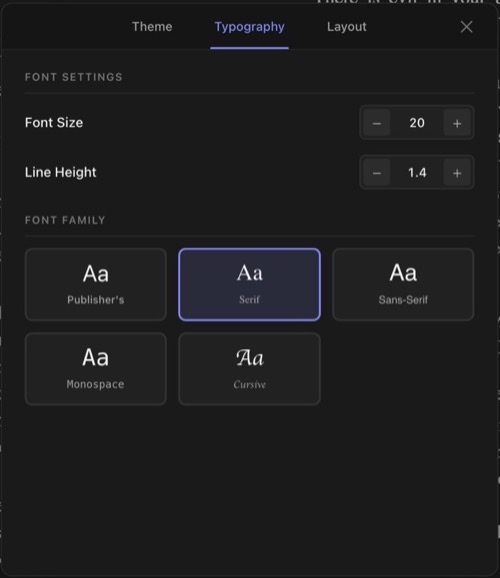
| Setting | Range | Default |
|---|---|---|
| Font Size | 10 – 32 | 16 |
| Line Height | 0.8 – 3.0 | 1.5 |
Font family options: Publisher's (uses the book's embedded fonts), Serif, Sans-Serif, Monospace, Cursive, and any custom fonts you've uploaded.
📐 Layout
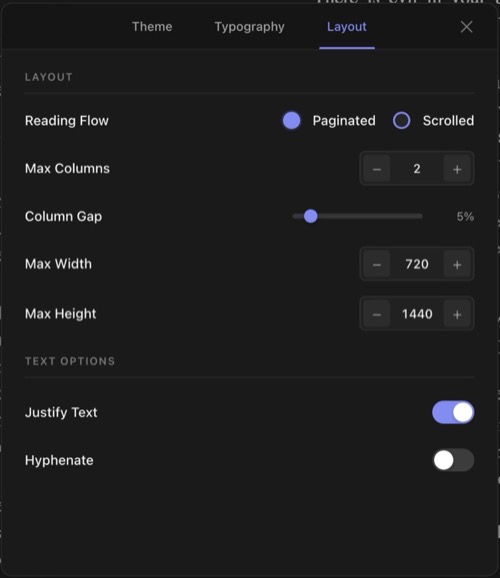
| Setting | Range | Default |
|---|---|---|
| Reading Flow | Paginated / Scrolled | Paginated |
| Max Columns | 1 – 10 | 2 |
| Column Gap | 0 – 50% | 5% |
| Max Width | 400 – 1600 px | 720 px |
| Max Height | 600 – 2400 px | 1440 px |
| Justify Text | On / Off | On |
| Hyphenate | On / Off | Off |
Paginated mode displays content in discrete pages you flip through. Scrolled mode renders the book as a continuous scrollable document.
💾 Settings Persistence
Reader settings can be saved per book or as global defaults. When you open a book that has per-book settings saved, those take priority over the global defaults.
📊 Reading Progress
Progress is saved automatically as you read. When you reopen a book, the reader returns to your exact position. The footer progress bar and percentage display update in real time.
Reading sessions are tracked in the background: each time you open the reader, a session is recorded with start/end times and positions. These sessions appear in the book's Metadata Center under the Reading Sessions tab.