🔤 Custom Fonts for EPUB Reader

Personalize your reading experience by uploading custom fonts to use in BookLore's EPUB reader. Choose fonts that match your style, improve readability, or support specific languages with an easy-to-use font management interface.

Pro Tip

Use fonts from Google Fonts, Font Squirrel, or Adobe Fonts for high-quality, professionally designed typefaces. Make sure to download the font files in supported formats!


🌟 What You'll Achieve

With Custom Fonts, you can:

  • Upload custom font files in TTF, OTF, WOFF, or WOFF2 format
  • Manage up to 10 fonts per user account
  • Apply fonts to EPUB books for a personalized reading experience
  • Switch between fonts easily in reader preferences
  • Delete fonts when no longer needed

✨ How Custom Fonts Work

🔄 The Font Management Flow

  1. 📥 Upload Font File Upload a font file from your computer (.ttf, .otf, .woff, .woff2).

  2. ✏️ Name Your Font Give your font a memorable display name (or use the original filename).

  3. 💾 Save to Library Font is saved securely to your BookLore data directory.

  4. ⚙️ Set as Default Select your custom font in EPUB Reader Preferences.

  5. 📖 Enjoy Reading Your chosen font is applied to all EPUB books you read.


🚀 Getting Started

Prerequisites

  • A BookLore account with active session
  • Font files in one of these formats:
    • TTF (TrueType Font)
    • OTF (OpenType Font)
    • WOFF (Web Open Font Format)
    • WOFF2 (Web Open Font Format 2)
Font File Requirements
  • Maximum file size: 5MB per font
  • Maximum fonts per user: 10 fonts
  • Supported formats: .ttf, .otf, .woff, .woff2

📖 Accessing Custom Fonts

Opening the Font Manager

  1. Navigate to Settings Click your profile icon → Settings

  2. Find Custom Fonts Section Scroll down or navigate to the Custom Fonts section

  3. View Your Font Collection See all uploaded fonts with details (name, format, size, upload date)


📥 Uploading a Custom Font

Step-by-Step Upload Guide

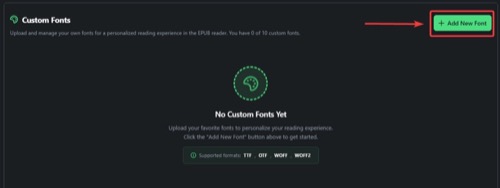
1. Click "Add New Font" Button

In the Custom Fonts section, click the "Add New Font" button. Custom Fonts Tab

Quota Check

If you already have 10 fonts, you'll need to delete one before uploading a new font.

2. Select Font File

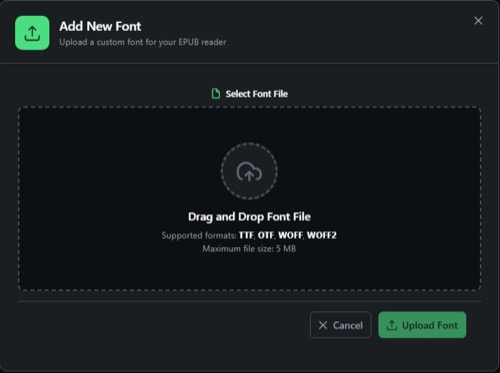
Font uploader dialog will open, click on upload area or drag and drop font file into it

Font Upload Dialog - Empty

A file picker dialog will open. Choose your font file:

Supported formats:

  • font.ttf - TrueType Font
  • font.otf - OpenType Font
  • font.woff - Web Font
  • font.woff2 - Web Font (compressed)

After select, font preview and font name input will show up

Font Upload Dialog - Font Selected

3. Enter Font Name (Optional)

You can provide a custom display name for your font:

Font Name: "My Beautiful Serif Font"

Naming Guidelines:

  • Descriptive names help you identify fonts later
  • If left blank, the original filename is used
  • Examples: "Georgia Pro", "Reading Font", "OpenDyslexic"
Meaningful Names

Use descriptive names like "Serif Reading" or "Code Display" instead of generic names like "Font1" or "MyFont".

4. Upload Confirmation

Click on "Upload Font" to confirm the upload. After successful upload, you'll see:

  • ✅ Success message
  • Font appears in your collection
  • Font details: name, format, file size, upload timestamp

🎨 Managing Your Fonts

Viewing Font Collection

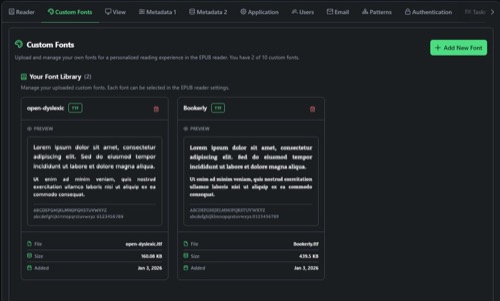
Your Custom Fonts section displays all uploaded fonts in a list or grid view.

Font Collection

Each font card shows:

  • Font Name - Display name you provided
  • Original Filename - The file you uploaded
  • Format - Font file type (TTF, OTF, WOFF, WOFF2)
  • File Size - Size in KB or MB
  • Upload Date - When the font was added
  • CSS Identifier - Internal identifier for developers

Font Information Display

Font Name: Open Sans Regular
Original File: OpenSans-Regular.ttf
Format: TTF
Size: 224 KB
Uploaded: January 3, 2025, 10:30 AM

🗑️ Deleting a Font

Removal Process

  1. Locate the Font Find the font you want to delete in your collection

  2. Click Delete Button Click the trash icon or "Delete" button on the font card

  3. Confirm Deletion A confirmation dialog appears:

    Are you sure you want to delete the font "Open Sans Regular"?
  4. Deletion Complete

    • Font file removed from server
    • Database record deleted
    • Font removed from your collection
Permanent Deletion

Deleted fonts cannot be recovered. If the font is currently selected in your EPUB preferences, it will revert to the default font.


⚙️ Using Custom Fonts in EPUB Reader

Setting Your Default Font (Global Settings)

After uploading a font, apply it to your EPUB reader:

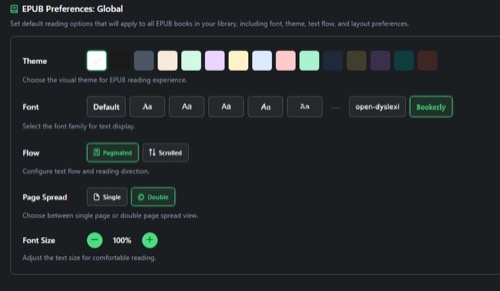
1. Open EPUB Global settings

Navigate to: Settings → Reader Preferences → EPUB Preferences: Global

2. Select Custom Font

Font Configuration - Global

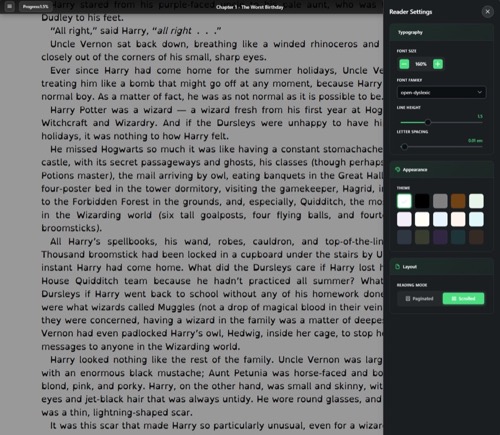
Setting Your Reader Font (Per book settings)

1. Open EPUB Reader Preferences

**Navigate to:**Reader header -> Settings Button → Reader Settings

2. Select Custom Font

In the Typography section:

  1. Find the Font Family dropdown
  2. Your custom fonts appear at the bottom of the list
  3. Select your preferred custom font

Font Configuration - Global

3. Font Applied to Books

Font Loading

Custom fonts load from the BookLore server when you open an EPUB book. The first load may take a moment, but subsequent pages load instantly.


Font File Size Optimization

Reducing File Size

If your font exceeds the 5MB limit:

  1. Use WOFF2 format - Most compressed format (typically 30% smaller than TTF)
  2. Remove unused glyphs - Use tools like FontForge to subset fonts
  3. Choose lighter weights - Regular weight instead of full font family
  4. Online converters - Use Transfonter or Font Squirrel Webfont Generator

Font Conversion Tools

Convert fonts to web-optimized formats:


Font Organization Strategy

Naming Strategy

Use consistent naming conventions:

Good Names ✅

Serif-Georgia-Regular
Sans-OpenSans-Bold
Mono-FiraCode-Regular
Dyslexic-OpenDyslexic

Bad Names ❌

Font1
MyFont
NewFont2025
downloaded_font

Font Collection Management

Recommended approach:

  • Keep 3-5 fonts for different purposes
  • 1 serif for classic books
  • 1 sans-serif for modern content
  • 1 monospace for technical/code books
  • 1-2 specialty fonts (dyslexia, decorative)
Stay Organized

Delete unused fonts to keep your collection manageable and leave room for experimentation.


🔧 Troubleshooting

Common Issues and Solutions

Issue: "File size exceeds maximum allowed (5MB)"

Causes:

  • Font file is too large
  • Font family includes multiple weights/styles

Solutions:

  1. Convert to WOFF2 format for better compression
  2. Use a font subsetting tool to remove unused characters
  3. Download only the specific weight you need (e.g., Regular instead of full family)
  4. Use online compression tools

Issue: "Invalid font file format"

Causes:

  • Unsupported file format
  • Corrupted font file
  • File extension doesn't match actual format

Solutions:

  1. Verify file format is TTF, OTF, WOFF, or WOFF2
  2. Re-download font from the original source
  3. Convert font using a trusted converter
  4. Check file extension matches actual format

Issue: "Maximum fonts quota exceeded"

Causes:

  • You already have 10 fonts uploaded

Solutions:

  1. Delete unused fonts to free up space
  2. Replace an existing font instead of adding new one
  3. Choose versatile fonts that work for multiple purposes

Issue: Font doesn't appear in EPUB reader

Causes:

  • Browser cache not refreshed
  • Font not properly uploaded
  • Reader preferences not saved

Solutions:

  1. Hard refresh browser (Ctrl+F5 or Cmd+Shift+R)
  2. Check Custom Fonts section to verify upload
  3. Re-save EPUB Reader Preferences
  4. Try selecting a different font, then re-select your custom font
  5. Check browser console for errors (F12)

Issue: Font renders incorrectly or looks broken

Causes:

  • Font file is corrupted
  • Missing font glyphs for specific characters
  • Font not designed for screen reading

Solutions:

  1. Re-upload the font file
  2. Try a different weight or version of the same font
  3. Test font in other applications to verify integrity
  4. Download font from official source

Issue: Upload fails with no error message

Causes:

  • Network connectivity issues
  • Server timeout
  • File reading permissions

Solutions:

  1. Check your internet connection
  2. Try a smaller font file
  3. Refresh the page and try again
  4. Check browser console for errors
  5. Try a different browser

📋 Quick Reference

Supported Font Formats

FormatExtensionMax SizeCompressionBrowser Support
TTF.ttf5MBNoneExcellent
OTF.otf5MBNoneExcellent
WOFF.woff5MBModerateExcellent
WOFF2.woff25MBBestExcellent

Font Limits

  • Maximum fonts per user: 10
  • Maximum file size: 5MB per font
  • File storage: ~/booklore/data/custom-fonts/
  • Formats supported: TTF, OTF, WOFF, WOFF2

Free & Open Source:

Specialized Fonts:


🔒 Privacy & Security

Font Storage

  • Fonts are stored per-user in isolated directories
  • Files are validated for security (magic byte validation)
  • Path traversal protection prevents unauthorized access
  • Fonts are only accessible to the uploading user

Font Deletion

  • Deleting a font removes:
    • The font file from disk
    • The database record
    • All references in preferences

Font Licensing

License Compliance

Important: Ensure you have the right to use any font you upload to BookLore.

  • Only upload fonts with licenses allowing web/digital use
  • Free fonts (Google Fonts, Font Squirrel) are typically safe
  • Commercial fonts may have restrictions
  • Respect font creators' licenses and terms

BookLore does not enforce font licensing - this is your responsibility.


🎓 FAQ

Can I share my custom fonts with other users?

No, custom fonts are private to each user account. Other users must upload their own fonts.

What happens if I delete a font that's currently in use?

The EPUB reader will automatically fall back to the default font. You'll need to select a different font in your preferences.

Can I upload multiple variations of the same font family?

Yes, but each variation counts as one font toward your 10-font limit. For example:

  • Roboto Regular (1 font)
  • Roboto Bold (1 font)
  • Roboto Italic (1 font)

Do custom fonts work with PDF or comic readers?

No, custom fonts are only supported in the EPUB reader. PDFs and comics use embedded fonts from the original files.

Can I use custom fonts on my Kobo or KOReader device?

No, custom fonts in BookLore only apply to the web-based EPUB reader. Device sync (Kobo/KOReader) uses device-native font settings.

Will my custom fonts affect other users reading the same book?

No, font choices are personal preferences. Each user can have different font settings for the same book.

How do I reset to the default font?

In EPUB Reader Preferences, select the default font from the Font Family dropdown and save.


🙋 Need Help?

Can't find what you're looking for?


Happy Reading with Your Custom Fonts! 🔤📚