📥 Bookdrop
Add books to your library by dropping files into a folder. Bookdrop watches for new files, extracts metadata, optionally enriches it from online sources, and queues everything for review before importing.
Bookdrop may not reliably detect new files on network-mounted storage (e.g., NFS or SMB). Many network filesystems do not propagate real-time filesystem events to the host process, so Bookdrop may not notice newly added files.
If Bookdrop doesn't react when you add files:
- Use a local folder instead
- Adjust mount options to enable notification support
- Restart Booklore to trigger a manual rescan
- Open the Bookdrop UI and click the manual "Refresh" button to force a reload
- You can also enable periodic scanning for the Bookdrop folder in Settings → Tasks.
Drop entire folders of books at once. Bookdrop processes them sequentially and queues everything for easy review.
🚀 Getting Started
Mount a local directory as your Bookdrop path in docker-compose.yml:
volumes:
  - /path/to/bookdrop:/bookdrop
Ensure the Bookdrop folder has proper read/write permissions for the BookLore container.
Drop supported files (PDF, EPUB, CBZ, CBR, CB7) into this folder. You can drop entire folders of books at once.
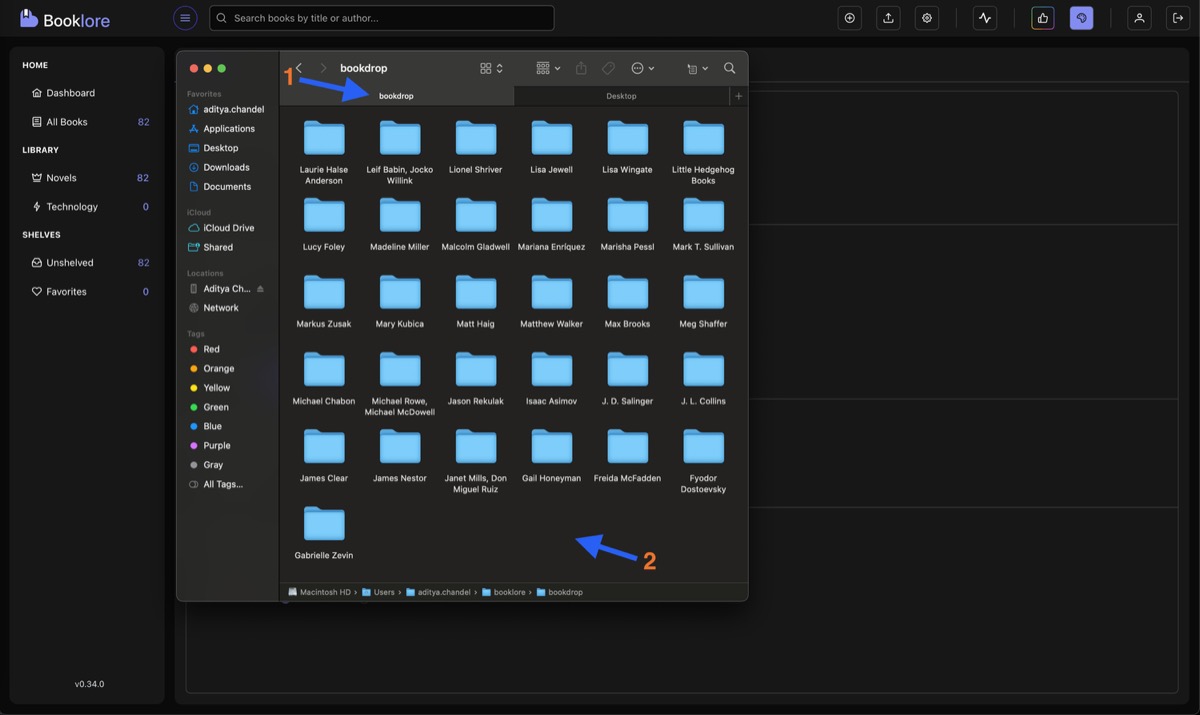
Monitoring Progress
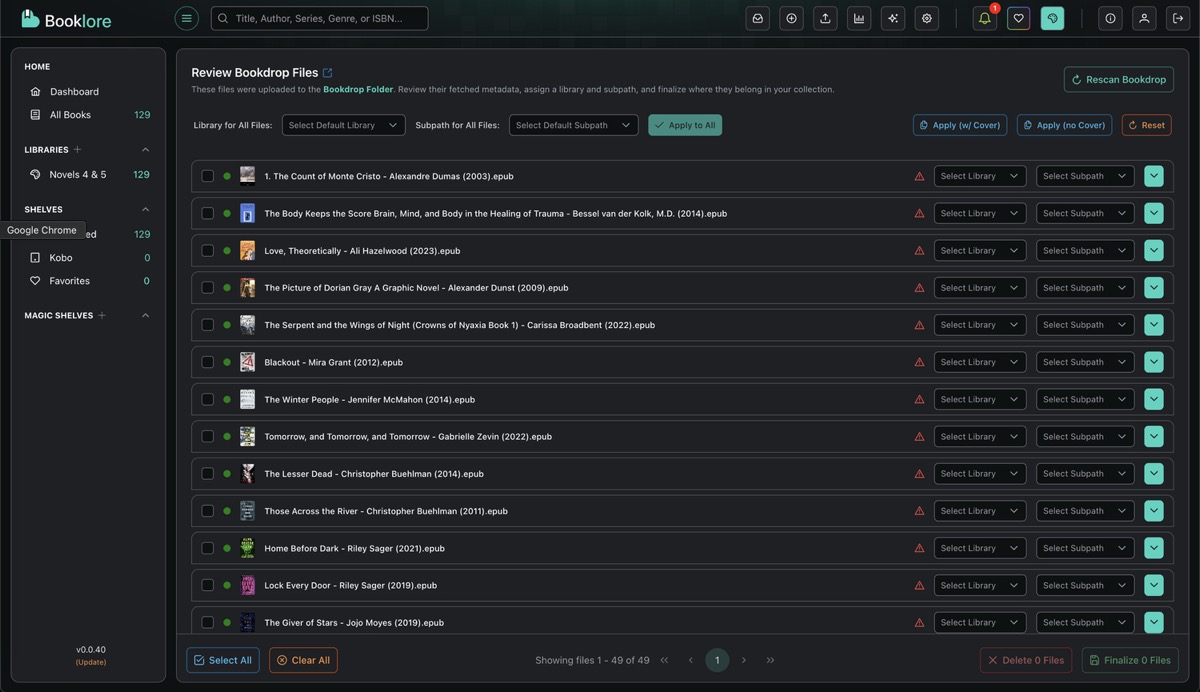
Click the bell icon in the top bar to see processing status. When processing completes, click Review to open the Bookdrop UI.

📖 The Bookdrop UI
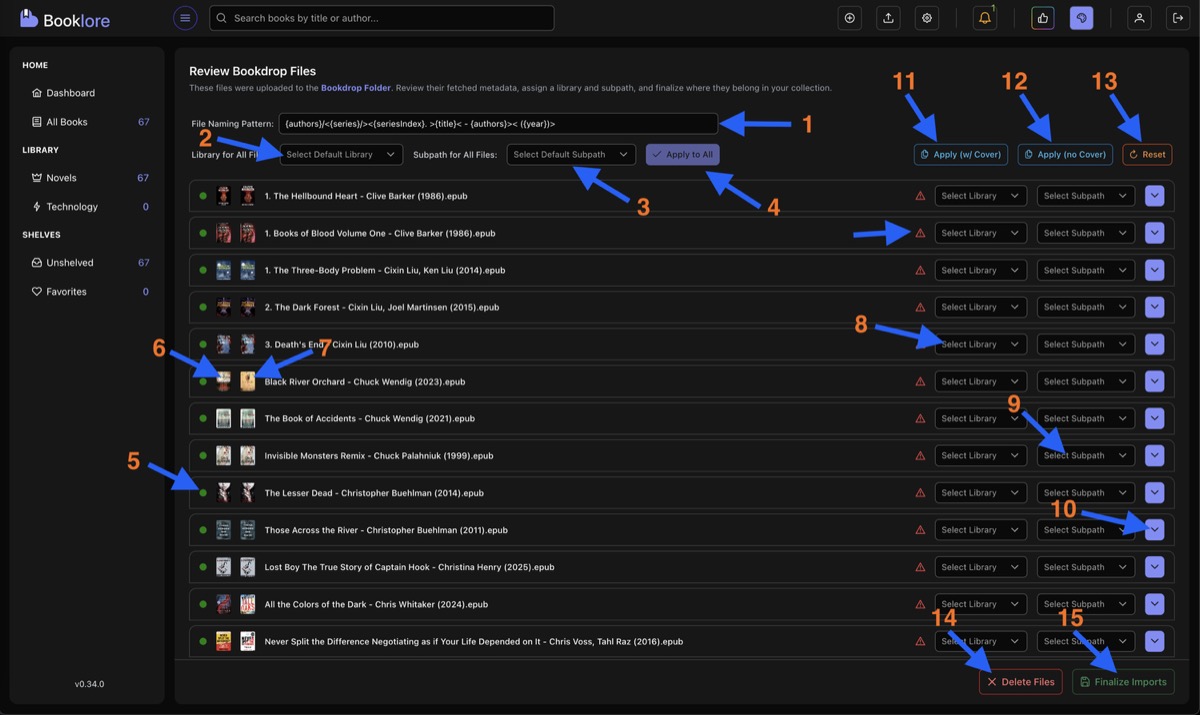
🎯 Global Settings (Top)
- Filename Pattern Preview showing how books will be renamed based on your configured pattern
- Default Library for all books (can be overridden per book)
- Default Subfolder within the library (e.g., "Sci-Fi", "Non-Fiction")
- Apply Defaults to All to set the library and subfolder for every book in the list
📚 Per-Book Controls (Middle)
- Metadata Status (green = fetched from online, yellow = internal only)
- Fetched Cover from online sources
- Internal Cover embedded in the book file
- Per-Book Library Override
- Per-Book Subfolder Override
- Metadata Comparison Panel for side-by-side fetched vs. internal metadata
🛠️ Bulk Actions (Bottom)
| Button | Description |
|---|---|
| Apply All Metadata (with Cover) | Copies all fetched metadata including covers to all books |
| Apply All Metadata (without Cover) | Applies fetched metadata but keeps original embedded covers |
| Reset All Metadata | Reverts all changes, restoring original file-based values |
| Delete All | Clears the Bookdrop queue (files remain on disk) |
| Finalize Import | Moves files to libraries, applies metadata, renames files |
🎨 Per-Book Metadata Comparison
Click the dropdown icon next to any book to open the comparison panel:

Single Arrow copies only missing fields from fetched metadata. Existing values are left untouched:
Current:  Title = "Book",     Author = ""
Fetched:  Title = "The Book", Author = "John Doe"
Result:   Title = "Book",     Author = "John Doe"  ← only author was empty, so only author copied
Double Arrow overwrites all fields with fetched metadata:
Current:  Title = "Book",     Author = "Unknown"
Fetched:  Title = "The Book", Author = "John Doe"
Result:   Title = "The Book", Author = "John Doe"  ← everything replaced
You can also use the copy button next to individual fields for selective updates. Updated fields are highlighted in green.
✅ Finalizing the Import
After clicking Finalize Import, a summary shows successfully imported books, their library placement, any skipped files, and processing statistics.

After import, original files are automatically removed from the Bookdrop folder.