📄 PDF Reader
BookLore includes a full PDF reader powered by PDF.js with support for annotations, multiple view modes, search, and reading progress tracking.
📚 Reading Interface
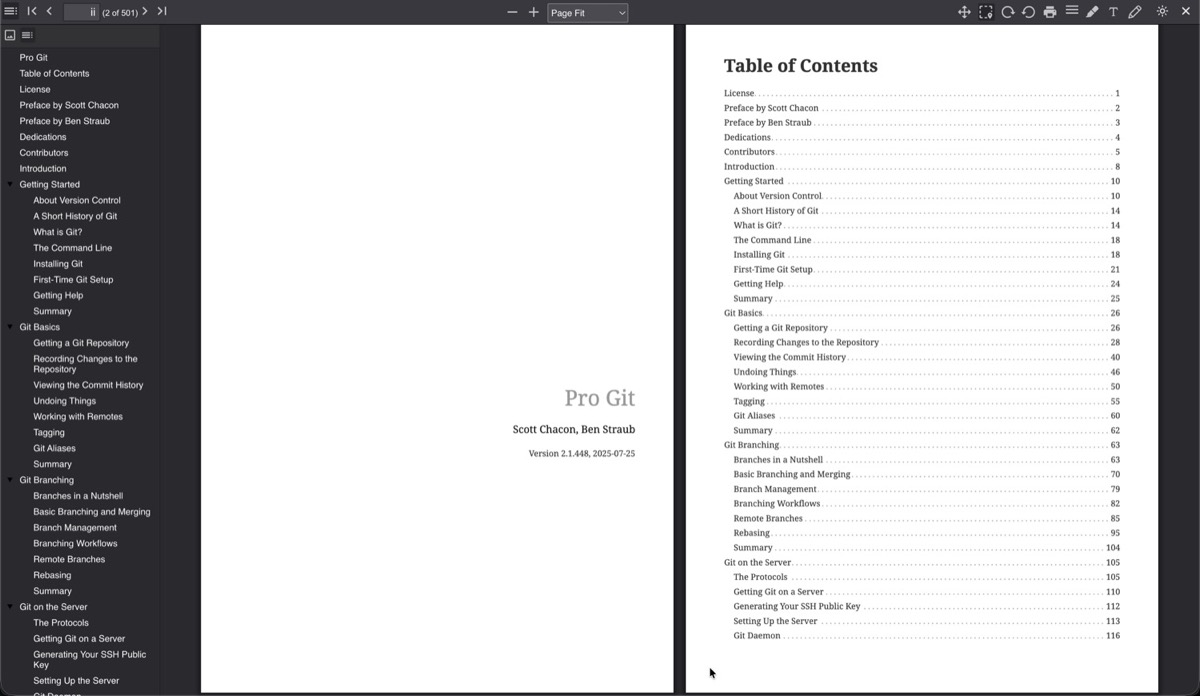
The reader opens with a toolbar across the top and an optional sidebar showing the document outline (table of contents). The sidebar can be toggled with the sidebar button in the toolbar.
🔧 Toolbar Actions
Left side:
| Button | Action |
|---|---|
| Sidebar toggle | Show/hide the document outline |
| Find | Open the search bar |
| Page input | Jump to a specific page number |
Right side:
| Button | Action |
|---|---|
| Zoom controls | Zoom in/out and preset zoom levels |
| Hand tool | Pan/scroll mode |
| Select tool | Text selection mode |
| Rotate | Rotate page clockwise or counter-clockwise |
| Print the document (requires download permission) | |
| View mode | Page spread and scroll mode selector |
| Highlight | Highlight annotation tool |
| Text | Text annotation tool |
| Draw | Freehand drawing tool |
| Theme toggle | Switch between dark and light mode |
| Close | Exit the reader |
📐 View Modes
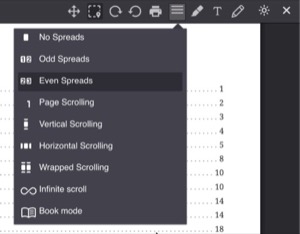
The view mode dropdown offers several ways to display pages:
📖 Page Spreads
| Mode | Description |
|---|---|
| No Spreads | Single page at a time |
| Odd Spreads | Odd pages on the left, even on the right |
| Even Spreads | Even pages on the left, odd on the right |
📜 Scroll Modes
| Mode | Description |
|---|---|
| Page Scrolling | One page at a time, snapping between pages |
| Vertical Scrolling | Continuous vertical scroll through all pages |
| Horizontal Scrolling | Scroll left/right through pages |
| Wrapped Scrolling | Pages wrap like a grid, multiple pages visible at once |
| Infinite Scroll | Seamless continuous scrolling |
| Book Mode | Two-page spread that mimics a physical book |
🔍 Zoom Options
Four preset zoom levels are available in the reader preferences:
| Option | Description |
|---|---|
| Auto | Automatically selects the best zoom |
| Page Fit | Fits the entire page in view (default) |
| Page Width | Fits the page width to the window |
| Actual Size | Displays at 100% scale |
The toolbar also provides manual zoom in/out controls.
✏️ Annotations
The PDF reader supports three annotation types:
- Highlights for marking text passages
- Text annotations for adding comments
- Freehand drawing for markup
Annotations are saved automatically (with a 1.5 second debounce) and persist across sessions.
🔍 Search
Click the Find button or use Ctrl+F to open the search bar. Matches are highlighted in the document as you type.
📊 Reading Progress
Progress is saved automatically on every page change. The reader tracks both the current page number and the reading percentage. When you reopen a PDF, it returns to your last position.
Reading sessions are recorded in the background with start/end times and page positions.
💾 Settings Persistence
PDF reader settings can be saved globally (applied to all PDFs) or per book. The scope is controlled in Reader Preferences. Per-book settings override global defaults when enabled.