🦸 Comic Reader
BookLore's comic reader handles CBZ, CBR, and CB7 files with page-by-page navigation, two-page spreads, slideshow mode, bookmarks, notes, and customizable display settings.
📚 Reading Interface
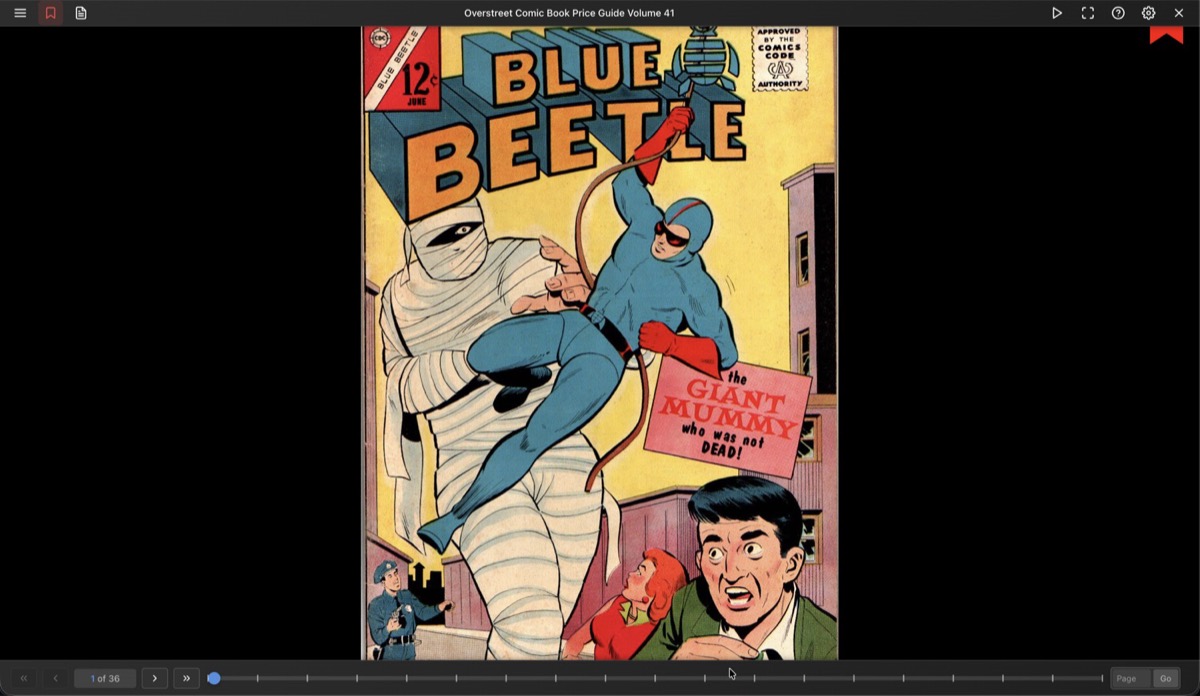
The reader displays comic pages with a header toolbar at the top and a progress bar at the bottom. Both auto-hide and reappear when you hover near the edges or tap the image.
🔧 Toolbar Actions
| Button | Action |
|---|---|
| Menu | Opens the sidebar with pages, bookmarks, and notes |
| Bookmark | Toggles a bookmark on the current page |
| Notes | Opens the note dialog for the current page (indicator dot when a note exists) |
| Play/Pause | Starts or stops the slideshow |
| Fullscreen | Enters fullscreen mode |
| ? | Shows keyboard shortcuts |
| Settings | Opens the settings panel |
| X | Closes the reader |
On mobile, Play/Pause, Fullscreen, and Help are moved into an overflow menu.
📑 Sidebar
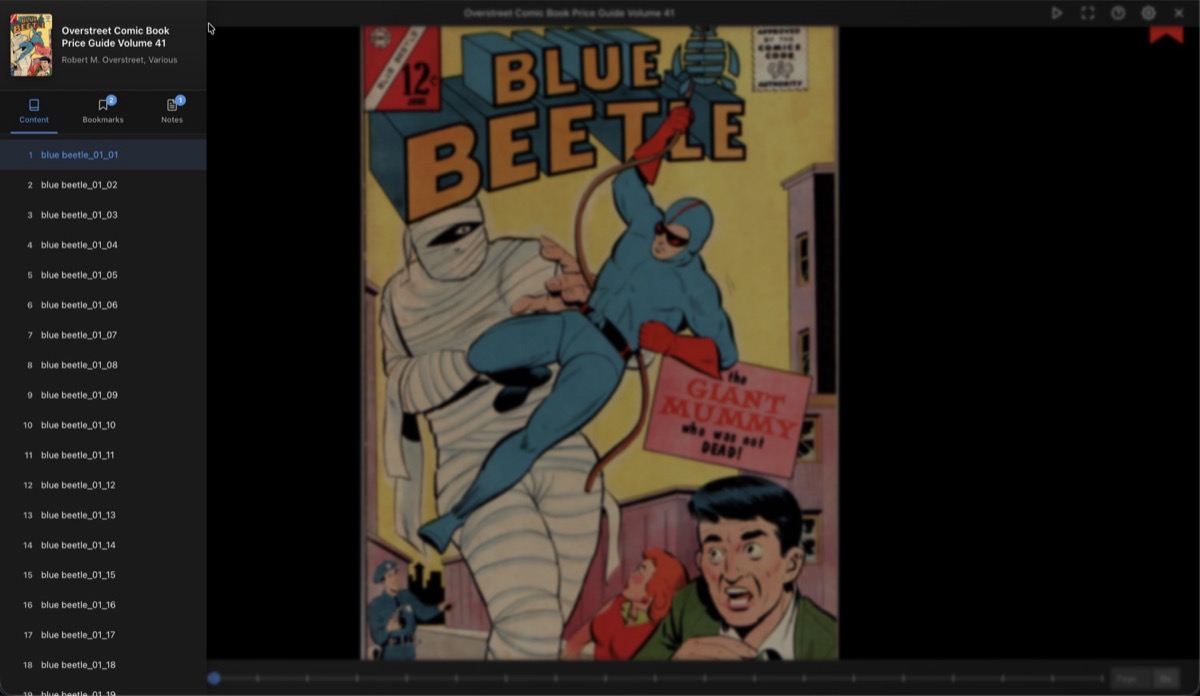
The sidebar has three tabs:
- Contents lists all pages by filename. Click a page to jump to it. The current page is highlighted.
- Bookmarks shows all bookmarked pages with their title and creation date.
- Notes lists all notes with a search box to filter by content.
⚙️ Settings
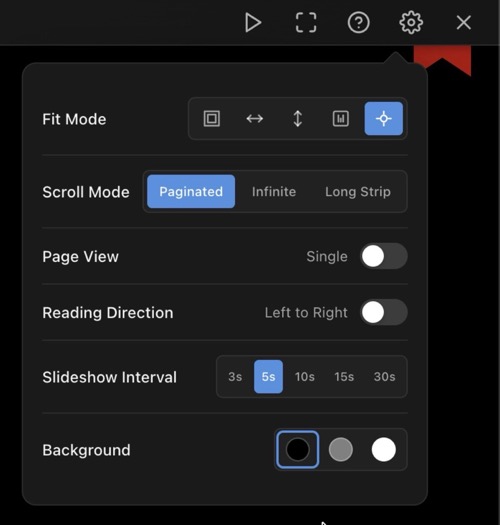
🔳 Fit Mode
| Mode | Description |
|---|---|
| Fit Page | Fits the entire page in the viewport |
| Fit Width | Scales to match the container width |
| Fit Height | Scales to match the container height |
| Actual Size | Displays at the original image resolution |
| Auto | Automatically selects the best fit |
📜 Scroll Mode
| Mode | Description |
|---|---|
| Paginated | Flip through one page (or spread) at a time (default) |
| Infinite | Continuous vertical scrolling through all pages |
| Long Strip | Long strip continuous scrolling (for webtoons) |
📖 Page View
Toggle between Single page and Two-page spread. In two-page mode, wide pages (landscape images) are automatically displayed as a single page.
Two-page mode is hidden on phones in portrait orientation.
🔄 Reading Direction
Toggle between Left to Right and Right to Left. RTL mode reverses the page order in two-page spreads and flips the direction of swipe gestures and arrow keys.
🎬 Slideshow Interval
Auto-advance pages at a set interval: 3s, 5s (default), 10s, 15s, or 30s. The slideshow stops automatically at the last page and pauses on any user interaction.
🎨 Background
Three background colors: Black, Gray (default), or White.
📝 Notes
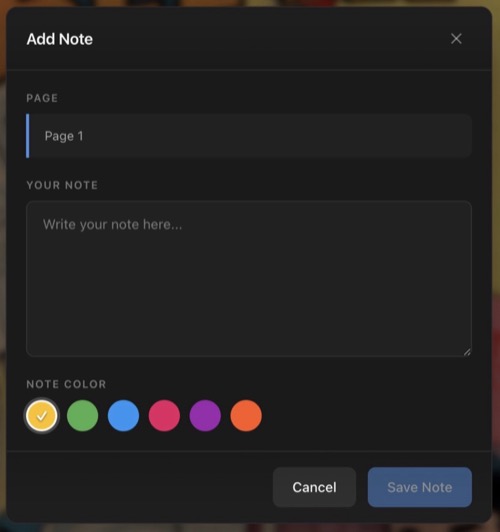
Click the notes button in the toolbar to add a note to the current page. Each note includes:
- The page number (auto-filled)
- Your note text
- A color label (Amber, Green, Blue, Pink, Purple, or Deep Orange)
Notes are listed in the sidebar under the Notes tab where you can search, edit, or delete them. Click a note to jump to that page.
🔖 Bookmarks
Click the bookmark button to bookmark the current page. A red bookmark overlay appears in the top-right corner of bookmarked pages. Manage bookmarks from the sidebar Bookmarks tab.
⌨️ Keyboard Shortcuts
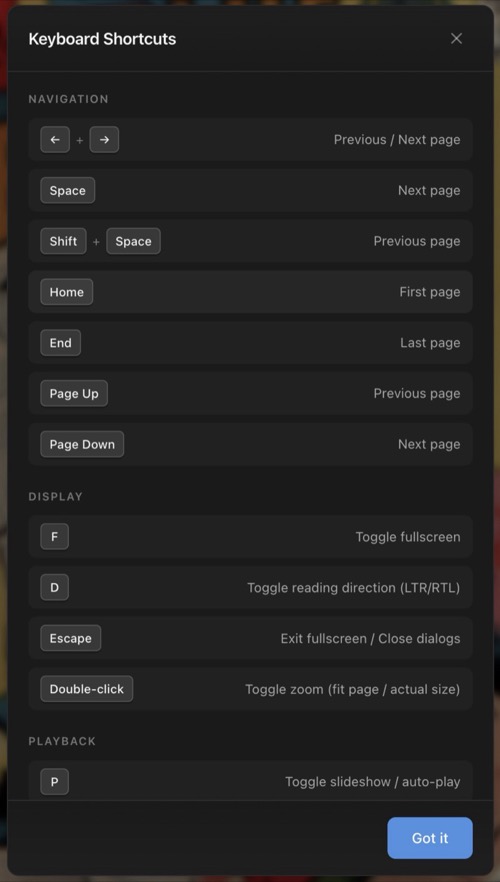
Navigation
| Keys | Action |
|---|---|
← → | Previous / Next page (reversed in RTL) |
Space | Next page |
Shift+Space | Previous page |
Home | First page |
End | Last page |
Page Up Page Down | Previous / Next page |
Display
| Keys | Action |
|---|---|
F | Toggle fullscreen |
D | Toggle reading direction (LTR/RTL) |
Escape | Exit fullscreen or close dialogs |
Double-click | Toggle zoom (fit page vs actual size) |
Playback
| Keys | Action |
|---|---|
P | Toggle slideshow |
Touch
- Swipe left/right to navigate pages (direction respects RTL setting)
- Double-tap to toggle zoom
📊 Reading Progress
Progress is saved automatically as you navigate. The reader tracks your current page and calculates a reading percentage. When you reopen a comic, it picks up where you left off.
Reading sessions are recorded with timing and page data.
📚 Series Navigation
If the comic is part of a series, navigation buttons appear in the footer to jump to the previous or next book in the series.
💾 Settings Persistence
Display settings can be saved globally (for all comics) or per book. The scope is controlled in Reader Preferences.