📖 Physical Books
Physical books let you catalog books you own in print, without needing a digital file. This is useful for tracking your full collection in one place, even if some of your books only exist on a shelf at home.
Physical books live alongside your digital books in any library. They show up in search, can be assigned to shelves and Magic Shelves, and support full metadata editing.
📌 Key Differences from Digital Books
| Digital Books | Physical Books | |
|---|---|---|
| File required | Yes (EPUB, PDF, CBZ, etc.) | No |
| Added via | Library scan or Bookdrop | Manual form |
| Reader | Built-in reader | Not applicable |
| Cover generation | Extracted from file | Fetched via metadata or uploaded manually |
| Metadata fetch | Automatic or manual | Manual entry, then fetchable via metadata providers |
| Badge | Format badge (EPUB, PDF, etc.) | Purple PHYSICAL badge |
| Shelves & Magic Shelves | Supported | Supported |
➕ Adding a Physical Book
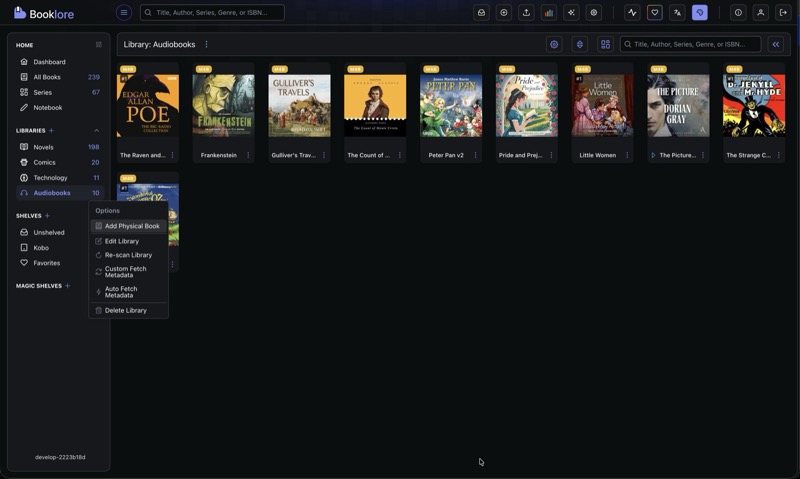
Step 1: Open the Library Menu
Right-click (or click the three-dot icon) on any library in the sidebar. Select Add Physical Book from the menu.
Step 2: Fill in the Form
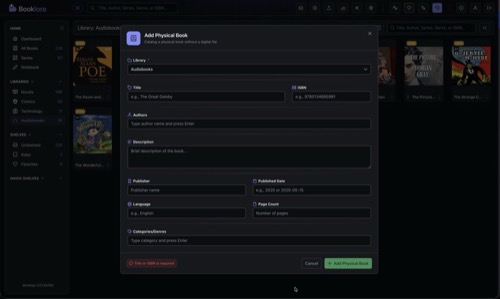
The Add Physical Book dialog lets you enter metadata for your book. The only hard requirement is that you provide a Title or an ISBN (or both).
Fields:
| Field | Required | Notes |
|---|---|---|
| Library | Yes | Pre-selected if opened from a specific library |
| Title | Title or ISBN | The book's title |
| ISBN | Title or ISBN | ISBN-10 or ISBN-13 |
| Authors | No | Type a name and press Enter. Autocompletes from existing authors in your collection. |
| Description | No | Brief description or summary |
| Publisher | No | Publisher name |
| Published Date | No | Accepts 2020 or 2020-05-15 format |
| Language | No | e.g., English |
| Page Count | No | Number of pages |
| Categories/Genres | No | Type a category and press Enter. Autocompletes from existing categories. |
Click Add Physical Book to save.
The Authors and Categories fields suggest values from books already in your collection, so you can keep naming consistent across your library.
Step 3: View Your Book
Once created, the physical book appears in the library alongside your digital books. It will display a purple PHYSICAL badge on the book card so you can easily tell it apart.
You can edit its metadata, assign it to shelves, upload a cover image, or fetch metadata from online providers just like any other book.
🪄 Filtering Physical Books with Magic Shelves
You can create a Magic Shelf that automatically collects all your physical books using the isPhysical rule field.
Example rule:
{
  "field": "isPhysical",
  "operator": "equals",
  "value": "true"
}
This makes it easy to see your entire physical collection at a glance, or combine it with other rules (e.g., all physical books by a specific author).
See Magic Shelf for more on creating rule-based shelves.
📋 Notes
- Physical books do not have a built-in reader since there is no file to open.
- Cover regeneration is skipped for physical books. To add or change a cover, use the metadata editor to upload one manually or fetch it from a metadata provider.
- Physical books count toward your library totals and appear in search results, filters, and statistics.