✏️ Edit Library
Modify library settings, trigger rescans, refresh metadata, or remove a library entirely.
🛠️ Accessing Library Options
Open the library menu from either location:
- Sidebar: Click the ellipsis icon next to the library name
- Header: Navigate to the library, then click the ellipsis icon in the header bar
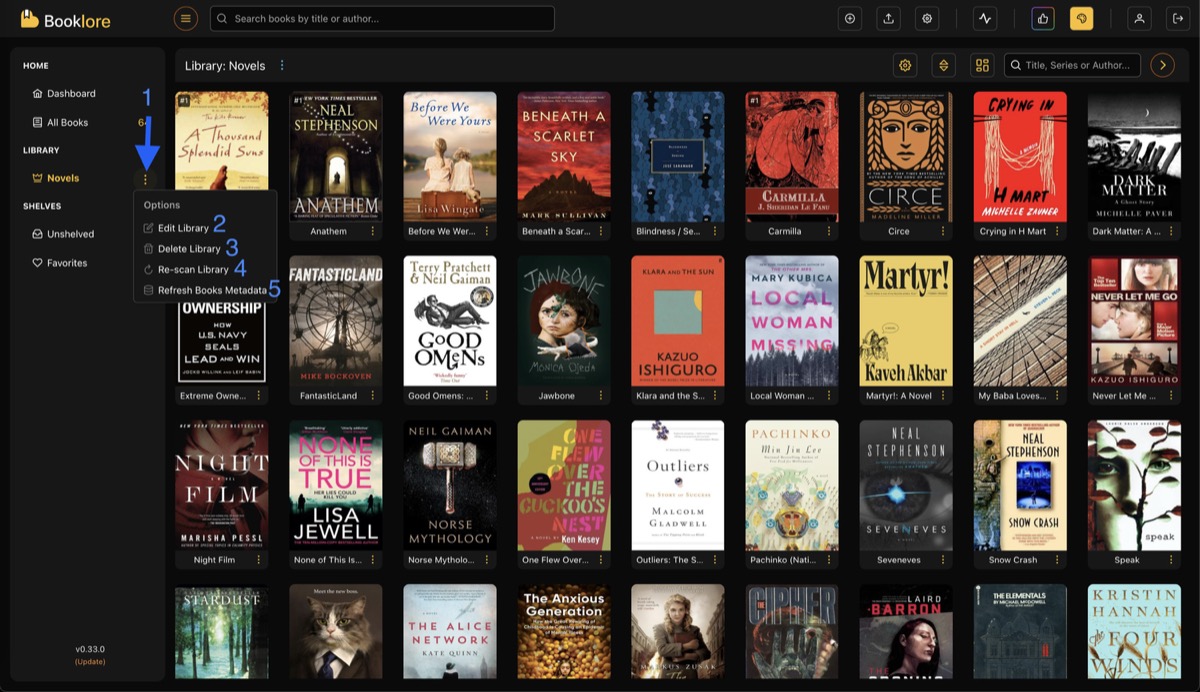
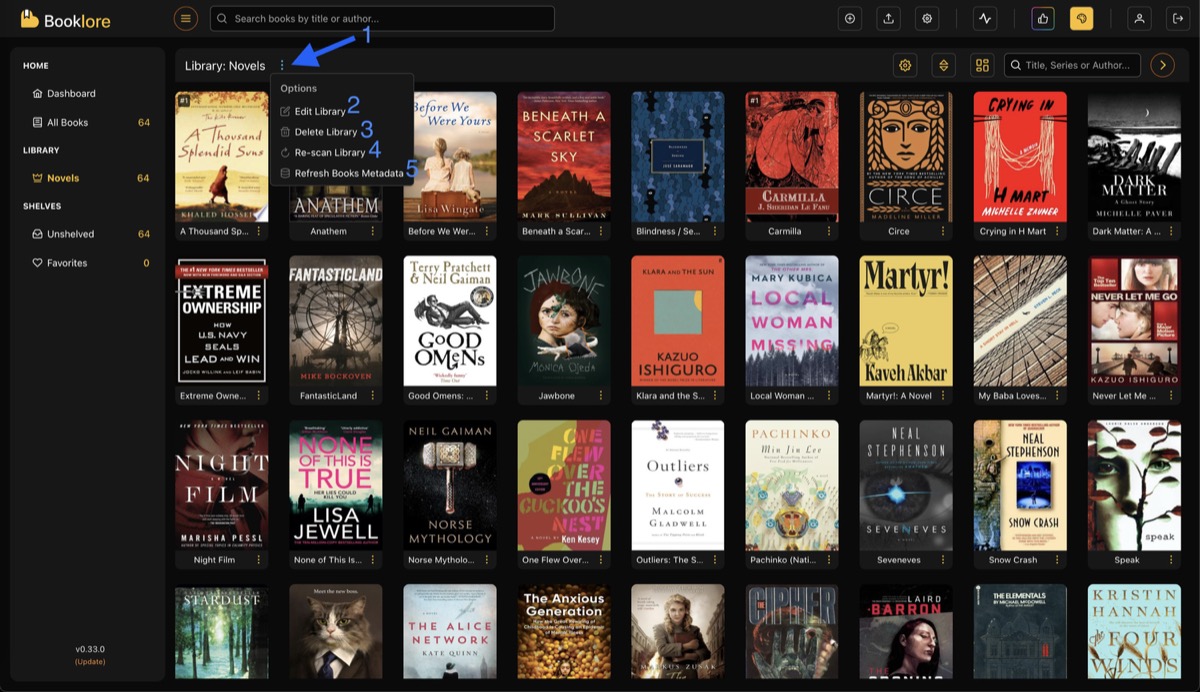
📋 Available Actions
✏️ Edit Library
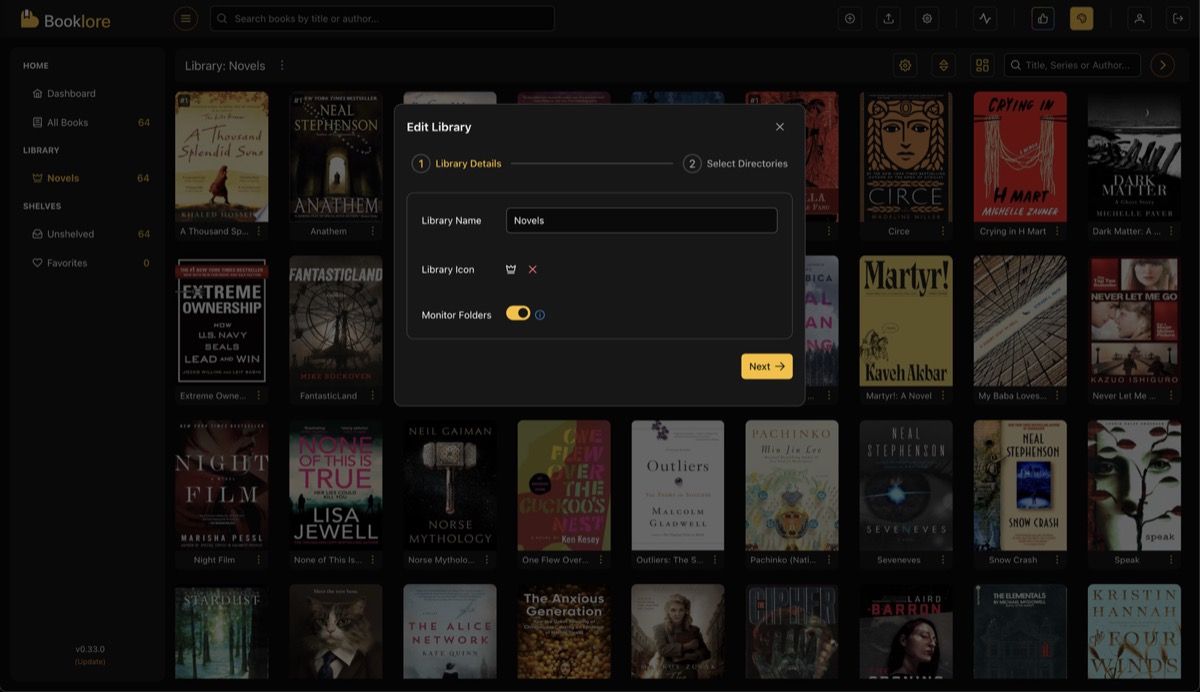
Opens the same dialog used during creation, with all settings editable:
- Library name and icon
- Book folders (add or remove)
- Watch Folders toggle
- Metadata source
- Format priority
- Allowed formats
🔄 Re-scan Library
Manually scans all library folders for changes. Use this when:
- Watch Folders is disabled
- New books weren't automatically detected
- You've reorganized files on disk
- Deleted files still appear in the library
The scan imports new books, removes deleted ones, and updates modified files.
If Watch Folders is enabled and working, manual rescans are unnecessary. Use them as a fallback if automatic detection missed something.
📥 Refresh Books Metadata
Re-fetches metadata for all books in the library from your configured online providers. Useful after setting up a new metadata source or when you want to bulk-update book information.
See Metadata Configuration for provider setup.
Metadata fetching for large libraries can take a while since it queries external APIs for each book. Consider running during off-hours.
🗑️ Delete Library
Permanently removes the library from Booklore. This deletes:
- Library configuration and metadata from the database
- Generated thumbnails and cache
Your original book files on disk are not touched.
Library deletion cannot be undone. All metadata customizations, reading progress, and shelving for books in this library will be lost.